
Introduction: Why UDISE Plus Login Matters
UDISE Plus is the central digital backbone for school-level information in India — the unified education management information system powering national reporting, policy decisions, and school-level administration. For school heads, teachers, data entry operators, and district administrators, knowing how to perform a secure and correct UDISE Plus login is the first and most important step to update enrollments, maintain student records, upload infrastructure details, generate official reports, and comply with Ministry of Education data schedules.
Access to the UDISE Plus Login portal unlocks several role-based modules: School Profile, Teacher, Student (SDMS), Reports, and User Management. Each module requires the correct login route and credentials, and this guide walks you through official login channels, step-by-step procedures, common login problems, secure password practices, and practical tips for clean, audit-ready data.
Understanding UDISE Plus Login Ecosystem
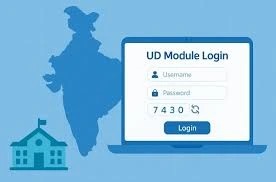
UDISE Plus replaces older, disparate systems with a single integrated platform under the Department of School Education & Literacy. Hosted by NIC, it supports NEP goals, streamlines data flows, and provides reliable insights for planning and governance.
Login is role-specific and module-specific. The central portal offers an “All Modules” gateway to select your state, then access modules based on role: Profile & Facility, Teacher, Student/SDMS, Reports, or School Directory.
School Users
- Use School Profile & Facility Module or School Directory.
- Username: 11-digit UDISE code.
- Password issued by Block MIS coordinator.
Teachers
- Access Teacher Module for service records and professional details.
- Credentials provided by State/District MIS.
- Captcha and forgot-password links available.
Data Entry Operators
- Use SDMS for student enrolment, transfers, and attendance.
- Select state first, then enter user ID and password.
District & State MIS
- Dedicated dashboards and admin modules.
- Approve data, manage accounts, and run aggregated reports.
- Central dashboard provides analytics and reporting tiles.
Step-by-Step: How to Perform a Successful UDISE Plus Login
- Open udiseplus.gov.in and choose the correct module or “All Modules” gateway.
- Select your state to set the session context.
- Click the module tile: Profile & Facility, Teacher, Student/SDMS, Reports, or School Directory.
- Enter username (UDISE code for schools, user ID for teachers/data operators).
- Type password (change temporary credentials after first login).
- Enter captcha exactly as shown.
- Click Login. If modules don’t appear, use the “All Modules” gateway again or contact MIS.
Common Login Errors and Fixes
- Invalid credentials: Usually wrong state selected or wrong module. Clear cache and retry.
- Captcha fails: Refresh captcha, disable extensions, or try a different browser. Avoid copy-paste.
- Forgot password or mobile changed: Use “Forgot Password” or contact Block/District MIS coordinator.
- Module tiles missing: Log out, reselect state in “All Modules” gateway, or request role mapping from MIS.
- Session timeouts/slow performance: Work offline in DCF templates and upload during off-peak hours. Save frequently.
Secure Credential Practices for UDISE Plus Login
Security matters because UDISE+ stores sensitive school, teacher, and student data. Follow these pragmatic security tips to keep credentials safe and maintain audit readiness.
- Treat UDISE code, user IDs, and passwords as restricted. Avoid sharing passwords via email or messaging apps.
- Change temporary passwords to strong, unique passwords combining letters, numbers, and symbols.
- Log out after each session, especially on shared computers.
- Ensure the registered mobile number is current; it is used for OTPs and password resets.
- Use only official portal URLs: udiseplus.gov.in or sdms.udiseplus.gov.in.
School Profile & Facility Module
Verify or update infrastructure details, school timings, management type, and facilities. Changes may require district approval.
Teacher Module
Update personal details, Aadhaar linkages, qualifications, service records, and professional development. Follow offline forms only if state guidance allows.
Student (SDMS) Module
Manage admission, enrolment, promotions, dropouts, transfers, and IDs. Ensure correct class codes, DOBs, and unique identifiers.
Report Module & Dashboard
Pull consolidated reports for planning, NEP implementation, and monitoring. Use dashboards for trends in enrollment, teachers, and infrastructure.
Preparing Data Offline
| Tip | Details |
|---|---|
| Use Official Templates | Download DCF or Excel templates from the portal and validate locally before upload. |
| Backup Submissions | Keep annual copies and logs of who entered/edited records for audits. |
| Match Biometric/Attendance Systems | Ensure unique IDs match UDISE+ to prevent duplicates. |
| Bulk Upload Coordination | Coordinate with district MIS for mass promotions or transfers. |
Troubleshooting Login Issues
- Verify URL and module context.
- Capture screenshots of errors and report to Block MIS.
- Escalate to District/State MIS if unresolved.
- Include UDISE code, user ID, and attempted action in all communications.
Mobile Inaccessibility
- Notify Block MIS to update mobile number and reissue credentials.
- Coordinate with HR/payroll for teachers who have left to avoid orphaned accounts.
- Use offline records for urgent submissions with supervised district MIS upload.
Practical Checklist Before Login
- Confirm correct portal URL and module path.
- Keep UDISE code/user ID and password ready.
- Ensure registered mobile is functional for OTPs.
- Prepare offline DCF files.
- Use an updated browser and stable internet.
- Document roles if working in a team.
FAQ — UDISE Plus Login
Mastering UDISE Plus login is a practical skill: verify URL and module, keep credentials updated, coordinate with MIS, prepare offline data, validate before upload, and save confirmations. Following these steps ensures timely, accurate submissions and reduces audit issues.
For changes in login flows, policy updates, or new modules, rely on the official UDISE Plus Login portal and state MIS circulars. Keep this routine consistent for smooth operations all year.
Quick Reference Official Links
| Resource | Link |
|---|---|
| Central UDISE+ Portal | udiseplus.gov.in |
| Student Data Management System (SDMS) | sdms.udiseplus.gov.in |
| Teacher Module Login & Support | Teacher Module |
| School Directory & User Management | School Directory |