
Why UDISE Plus School Login Matters Now
UDISE Plus School Login is India’s centralized Education Management Information System (EMIS) that collects, stores, and reports school-level data for planning, policy, and resource allocation. For school administrators, principals, and Block/District MIS coordinators, successful access to the UDISE+ portal is the gateway to submitting student enrollment, teacher records, school profile details, infrastructure updates, and official reports used by the Ministry of Education and state departments.
Accurate login and timely data entry ensures your school appears correctly in national and state statistics, helps unlock funding, and enables compliance with schemes and audits. This guide focuses on the practical “UDISE Plus School Login” experience: how to access the portal, which credentials to use, module differences, common problems, and how to fix them.
School Directory & User Management
Manage school registration, create users, and maintain directory details. Often referred to as the “UD module”.
SDMS / Student Module
Update student enrollment, transfers, dropouts, progression, and student-level records. State selection may be required before login.
Profile & Facility Module
Maintain school profile, infrastructure, facilities, sanctioned posts, and lab details. Updates are submitted to district/state authorities.
Teacher Module
Record teacher details such as qualifications, service history, training, and attendance entries.
Understanding Usernames and Passwords
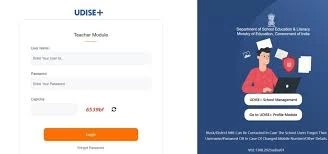
The primary school login username is your school’s 11-digit UDISE Plus School Login code. Passwords are issued by Block or District MIS coordinators and may allow OTP-based resets if the registered mobile is active.
The UDISE Plus School Login code is persistent across academic years. Consistent use ensures correct mapping in national reports, dashboards, and analyses.
Step-by-Step: School Directory Login (UD Module)
- Open the official School Directory login page (accessible from the UDISE+ homepage).
- Enter your User Name — typically the 11-digit UDISE code.
- Enter the Password provided by Block/District MIS.
- Solve the Captcha and click Login.
- For first-time users, follow prompts to update directory details or check “School Creation Status”.
- Ensure you are on an official domain: udiseplus.gov.in or sdms.udiseplus.gov.in.
Note: Depending on your state setup, the portal might redirect to a state-specific login screen (especially SDMS pages, which require state selection first).
Step-by-Step: SDMS (Student Module) Login & Data Entry
The Student Data Management System (SDMS) handles student enrollment, transfers, dropout tracking, and record management. Follow these steps to log in and manage student data accurately.
| Step | Action / Instructions |
|---|---|
| 1 | Visit sdms.udiseplus.gov.in and select your state from the drop-down list. |
| 2 | Click “User Login” and enter your User ID (UDISE code or state-assigned ID) and Password. |
| 3 | Solve the Captcha and proceed to the dashboard. |
| 4 | From the dashboard, access the Student Module to add new students, manage transfers, mark dropouts, or run enrollment reports. |
| 5 | Keep a local backup (spreadsheet or screenshot) of student lists before final submission. |
Notice: Common Login Errors & Fixes
- Invalid credentials: Check 11-digit UDISE code, remove extra spaces, verify with Block MIS.
- Captcha problems: Refresh image, clear cache, try another browser or disable extensions.
- User not found / School not created: Confirm school creation with Block/District MIS via the School Creation Status screen.
- Password expired / locked: Use “Forgot Password” or request reset from Block/District MIS.
- Mobile number changed: Contact Block/District MIS to update mobile and reset credentials.
- Browser / SSL issues: Use updated Chrome/Edge/Firefox with https:// on official domains.
| Scenario | Recommended Action |
|---|---|
| Forgot Password / OTP available | Follow portal prompts for OTP verification and reset password. |
| OTP not available or mobile changed | Contact Block/District MIS to reset password and update registered mobile. |
| State-level escalation | Use state helpdesk via UDISE+ “Contact Us” page for telephone or email support. |
Pre-Login Checklist
- Confirm the official 11-digit UDISE code.
- Keep the registered mobile phone ready for OTP.
- Prepare updated student lists, teacher info, and facility inventories.
- Use a desktop/laptop with stable internet and updated browser.
- Check portal availability to avoid maintenance windows.
Tips for Accurate Student Data Entry
- Use consistent naming formats; avoid punctuation inconsistencies.
- Validate DOBs and class mapping against admission registers.
- Check state policies for Aadhaar or alternative IDs before entry.
- Use bulk import templates (Excel/CSV) when available to reduce errors.
- Back up student tables or screenshot summary pages before submission.
Reports, Dashboards & UDISE Plus School Login Security
Once you submit data, your school’s entries feed into state and national dashboards used by policymakers, researchers, and program managers. Accurate submissions ensure visibility in government planning cycles.
Reports & Dashboards
- UDISE Plus School Login dashboard aggregates school, student, and teacher data — infrastructure scores, enrolment trends, gender parity, NEP-aligned categories.
- Principals should check the dashboard to confirm submitted data appears correctly and notify Block/District MIS if discrepancies arise.
Security & Privacy
- Use strong passwords and rotate annually.
- Limit user rights; grant roles only as required.
- Enable OTP/2FA if supported.
- Always log out and clear cache on shared devices.
- Maintain internal audit logs of changes and access.
Troubleshooting Advanced Issues
- Document errors: Take screenshots of messages or codes.
- Check maintenance schedules on official portals.
- Notify district MIS for complex sync or audit issues.
- Escalate with evidence: include exported CSVs/screenshots and timestamps.
Monthly Best Practices
- Cross-check enrolment counts, transfers, new admissions.
- Update Teacher Module within a week of staff changes.
- Update Profile & Facility for infrastructure changes.
- Keep quarterly backups of student & teacher registers.
- Coordinate with Block MIS for password/mobile updates.
SEO Tips for Schools
- Use “udise plus school login” in title, H1, headings.
- Include LSI terms: SDMS, profile & facility update, Block MIS password reset.
- Provide step-by-step content in readable paragraphs.
- Link to official UDISE+ portals for authority.
- Ensure mobile-friendliness and simple FAQ schema.
Frequently Asked Questions
Your school’s 11-digit UDISE code is usually the username. Contact Block MIS if unsure.
Use the portal’s Forgot Password/OTP flow, or ask Block/District MIS. Update mobile if changed.
The Student Module (SDMS) manages enrollment, transfers, dropouts, and progression.
School creation is incomplete at district/state level. Ask Block MIS to check School Creation Status in the UD module.
Yes — UDISE Plus School Login feeds dashboards and reports for Ministry of Education and states. Timely submissions affect visibility.
Pre-Session Checklist for Principals
- UDISE code and registered mobile are available.
- Current password or Block MIS contact is ready.
- Updated admission registers, teacher lists, and facility notes are on hand.
- Laptop and stable internet available (avoid long updates on mobile).
- Take screenshots or exports after major submissions.
UDISE+ school login is more than a gateway — it’s how your school is seen by district, state, and national education systems. Maintain secure access, follow routine audits, and coordinate with Block/District MIS. Always start from official portals: udiseplus.gov.in or sdms.udiseplus.gov.in.
| Resource | Official Link |
|---|---|
| UDISE+ Central Portal | udiseplus.gov.in |
| Student Data Management System (SDMS) | sdms.udiseplus.gov.in |
| UDISE+ Teacher Module | Teacher Module |
| School Directory & User Management | School Directory |